KAIST Deployment
Site-specific instructions and updates for KAIST Mobile Robots
Overview
This page collects configuration details and ongoing updates for the robot fleet at KAIST. Use the general Setup and Operation guides for baseline procedures; this page covers what is specific to your deployment.
Cheatsheet / Quickstart
Quick reference for day-to-day operation. For full detail, see Running the Robots. If Wi-Fi or IPs change, follow Updating Wi-Fi (IP Addresses) and update the table below.
| Device | IP address |
|---|---|
| Central machine | 192.168.68.52 |
| Robot 1 | 192.168.68.54 |
| Robot 2 | — |
| Robot 3 | 192.168.68.53 |
| Robot 4 | 192.168.68.51 |
Jetson login: username/password = jetson.
- Start Docker Desktop and the DDS Robot GUI (Stanford logo on desktop).
- In the GUI Local Stack panel, click Docker Start.
- Open Ubuntu WSL 1 (not plain Ubuntu / WSL2) and start DDS:
cd ~/dds_robot_platform/dds
conda activate dds
./start_scripts.sh
- (Optional) For data capture, in the Local Stack panel click the Capture Start button (directly under Local Stack Docker Start).
- Power on each robot; wait for the desktop. Turn on the bottom electronics/motor switch (red LED on).
- In the Robot GUI → Robot Startup: select robot → Start Docker → enable KAIST → Start ROS.
- LiDAR should spin; robot should appear on the map. Set initial position, then send goals as needed.
Alternate: use the robot display app (Start Docker / Start ROS) or SSH (commands below). Full options: Running the Robots.
SSH into a robot
ssh jetson@<robot_ip>
Example: ssh jetson@192.168.68.54 (Robot 1).
Enter the running ROS container
docker exec -it ros_noetic bash
Start ROS manually (inside container)
roslaunch mattbot_bringup kaist.launch
Stop ROS / leave container
In the roslaunch terminal: Ctrl+C. Then exit to leave the container, or from the Jetson host:
sudo docker stop ros_noetic
Check robot Wi-Fi IP (on Jetson)
ifconfig
Look under wlan0 for inet.
Power off Jetson (graceful)
sudo shutdown now -h
Stop central DDS scripts (WSL1)
cd ~/dds_robot_platform/dds
./stop_scripts.sh
Or press Ctrl+C in the terminal where ./start_scripts.sh is running.
Running the Robots
Follow these steps for the KAIST mobile robot configuration.
Start the operator GUI
On your workstation, launch the DDS Robot GUI (from the Desktop (Stanford Logo)). Also, start the Docker Desktop application (also on desktop).
After Docker Desktop is running, click the Local Stack Docker Start button in the Robot GUI (bottom right of the application). If you need sensor data capture, use the Capture Start button directly under it (see step 3).
Start the operator DDS Communication
Open the windows Terminal application. At the top of the application click the drop down button and open a new "Ubuntu WSL 1" tab. (Alternatively, you can directly open an Ubuntu WSL 1 terminal by searching for "Ubuntu WSL 1" in the Windows search bar.)
Important: This Ubuntu terminal should be WSL1, make sure you do not use the plan Ubuntu Terminal (which is WSL2)!
Navigate to the dds_robot_platform/dds/ repository, activate the dds conda environment, and run ./start_scripts.sh
cd dds_robot_platform/dds
conda activate dds
./start_scripts.sh
Data Storage Docker Containers
NOTE: This step is only necessary if you care about storing all the sensor data for later analysis (or for image testing).
In the Robot GUI Local Stack panel (bottom right), click the Capture Start button directly under the Local Stack Docker Start button. This starts the dds_robot_platform/capture Docker Compose stack.
Central Machine Setup Complete
The central machine setup is now complete. You can click the "Retry loading map" button in the Robot GUI to see the map. If robots are online, they should become available in the right hand side of the GUI.
Power on the robots
Power on the robots, wait a few minutes, the display screen should power on and you should see the desktop. Turn on the switch for the microcontroller and motors (the switch at the bottom), the red LED should turn on to signify the electronics are on.
Start the Robot Software (From DDS Robot GUI)
I have tried to make this as simple as possible and you can do this in multiple ways: by SSHing into the robot from a terminal, from the Robot GUI, or from the display app on the robot itself. Here I will walk you through all possible options.
Starting via SSH
SSH into the Jetson (username/password = jetson):
ssh jetson@<jetson_ip_address>
Then start the docker container:
sudo docker run --runtime nvidia --network=host -v ~/workspaces/catkin_ws:/workspace/catkin_ws -v ~/gemini_api:/gemini_code -v /dev/bus/usb:/dev/bus/usb -v /dev/video0:/dev/video0 -v /dev/video1:/dev/video1 -it --device=/dev/ttyUSB0 --device=/dev/spidev0.0 --rm --privileged --name ros_noetic ghcr.io/satomm1/ml_ros:latest bash -lc 'python3 /workspace/catkin_ws/src/startup_script.py & exec bash'
Then start the ROS node via the kaist.launch file:
roslaunch mattbot_bringup kaist.launch
Starting via the Robot GUI
Select the robot you want to start from the "saved addresses" dropdown under "Robot Startup" on the right hand side column. If the robot is powered on and the Robot GUI detects the robot, the little dot next to the robot should be yellow (not red).
Click the "Start Docker" button for the selected robot to start the required docker containers on the robots.
Click the "KAIST" checkbox to enable startup according to KAIST configuration.
Click the "Start ROS" button to start the ROS node. The LiDAR should start spinning and the robot will show up in the Robot Desktop GUI.
Starting via the Robot Display
The robot display app should automatically start upon booting up. If it doesn't, or you accidentally exit out, double tap the "Start-Mattbot-Display.sh" icon on the Desktop.
First, start Docker. There should be a button that says "Start Docker". This may take a few seconds and a success message will print on the screen.
Second, start the ROS node. Simply click the "Start ROS" button in the display. The LiDAR should start spinning and the robot will show up in the Robot Desktop GUI.
Note: These start up procedures must be completed individually for each robot
If there are software updates, you should pull software updates via the "Software Update" button in the Robot GUI. You must do this individually for each robot.
After startup is complete and robots appear in the DDS Robot GUI, use the map on the central operator workstation to localize each robot and send navigation goals.
Set initial position (GUI)
Select the robot
In the Robot GUI, click the robot you want to operate in the status panel (left column). The selected robot is used for all map clicks until you choose a different one.
Switch to Set Initial Position mode
In the map toolbar, select Set Initial Position. This tells the GUI you are seeding AMCL localization, not sending a navigation goal.
Set Initial Position
Click and drag on the map to indicate the robot’s actual location and orientation. This only needs to be in roughly the correct location. The robot will perform a spinning sequence to localize. The robot icon on the map should jump to that pose.
Set navigation goals (GUI)
Confirm localization
Make sure the robot’s position on the map matches where it is in the room. Navigation goals will fail or behave incorrectly if localization is wrong.
Switch to Set Robot Goal mode
In the map toolbar, select Set Robot Goal.
Click the destination on the map
With the correct robot selected, click and drag to set the goal location and orientation on the map. The robot should plan a path and drive to that point.
To send a new goal, stay in Set Robot Goal mode and click another point. Use Stop in the GUI if you need to halt motion before sending a new goal.
For automated patrol between saved waypoints, see Patrol.
You can stop robot software and power down using SSH, the central Robot GUI, or the touch display on each robot. Complete shutdown individually for each robot.
Shutting down via SSH
In the terminal where you ran roslaunch, press Ctrl+C to stop the ROS nodes.
If you started ROS via a different method, SSH into the Jetson if you are not already connected (username/password = jetson):
ssh jetson@<jetson_ip_address>
Then, connect to the docker container and stop ros nodes:
docker exec -it ros_noetic bash
rosnode kill --all
Stop the Docker container by typing exit in the container shell. If you started the container in detached mode or from another session, run:
sudo docker stop ros_noetic
To power off the Jetson gracefully, run:
sudo shutdown now -h
Wait for the Jetson to fully power down, then turn off the electronics/motor switch and the 12V battery.
Shutting down via the Robot GUI
Select the robot from the left-hand column, and then click shutdown to shutdown ROS nodes only on that robot.
Use Shut down all if you want to stop ROS execution on every connected robot at once.
Then select the robot in the dropdown box on the right hand column. Under "More", click Power Off to shut down the Jetson gracefully. Wait until the robot is fully off before cutting power.
Turn off the electronics/motor switch and the 12V battery.
Shutting down via the Robot Display
On the robot’s touch display, click Stop ROS to stop the running ROS nodes. The LiDAR should stop spinning.
Exit out of the display. From the desktop, tap on the upper right corner of the Ubuntu desktop and then click shutdown. Wait for the Jetson to fully power down.
After the Jetson has shut down, turn off the electronics/motor switch and the 12V battery.
Charge batteries before extended storage. See Operation Guide → Powering down for additional manual shutdown steps.
Shut down all robots first (see Shutdown Robots above), then stop the central operator workstation services in reverse order of startup.
Stop data storage Docker containers (optional)
Skip this step if you did not start the capture stack during startup.
In the Robot GUI Local Stack panel, click the Capture Stop button (directly under the Local Stack Docker controls).
Stop operator DDS communication
In Windows Terminal, find your Ubuntu WSL 1 tab (the same WSL1 environment used at startup — not plain Ubuntu / WSL2).
End the scripts by pressing Ctrl + C:
Alternatively, open a new Ubuntu WSL 1 tab and navigate to the DDS scripts directory and run the stop script:
cd dds_robot_platform/dds
./stop_scripts.sh
Stop the Local Stack Docker services
In the Robot GUI, click the Local Stack Docker Stop button (bottom right of the application). This stops the GraphQL, InfluxDB, and related compose services started at startup.
Close the operator GUI and Docker Desktop
Close the DDS Robot GUI application. You may quit Docker Desktop if you are finished for the day; leave it running if you plan to restart the stack soon.
One Time Updates
Required software, script, and hardware updates for the KAIST deployment. Most recent updates appear at the top.
After updating the central machine (see Pull latest dds_robot_platform in One Time Updates), pull the latest robot-side software on each Jetson using the Robot GUI. This must be done once per robot — the GUI update button applies only to the currently selected robot.
For each robot:
- Power on the robot and confirm it appears in the Robot GUI (status dot yellow, not red).
- In the right-hand Robot Startup panel, select the robot from the saved addresses dropdown.
- Click Start Docker if the robot’s Docker container is not already running.
- Click Software Update and wait for the update to finish. Do not power off the robot until the GUI reports success.
- After the update completes, click Start ROS (with the KAIST checkbox enabled) if you need the robot running again.
Repeat steps 1–5 for every robot in the fleet.
If an update fails, check that the Jetson host service is installed (see Previous updates → Install Jetson host service) and that the robot is reachable on the network.
On the central operator workstation, update the existing dds_robot_platform clone in both WSL environments used at KAIST: Ubuntu WSL 1 (DDS scripts) and plain Ubuntu / WSL2 (capture stack). Each distro has its own filesystem — run git pull in each one.
1. Ubuntu WSL 1 — open an Ubuntu WSL 1 tab in Windows Terminal (not plain Ubuntu / WSL2). If DNS/network lookups fail in WSL1, fix the resolver first, then pull:
sudo sh -c 'echo "nameserver 8.8.8.8" > /etc/resolv.conf'
cd ~/dds_robot_platform
git pull
2. Ubuntu (WSL2) — open a plain Ubuntu tab in Windows Terminal (WSL2, used for capture):
cd ~/dds_robot_platform
git pull
If git pull fails because of local changes in either environment, discard them and pull again:
cd ~/dds_robot_platform
git restore .
git pull
After pulling updates: if the Local Stack Docker containers are already running, you must restart them. Stop them via the Robot GUI (Local Stack Docker Stop), then start them again with Start. If Capture was running, also Stop then Start Capture in the same Local Stack panel.
If ./start_scripts.sh is running in the Ubuntu WSL 1 terminal, stop it with Ctrl+C, then run ./start_scripts.sh again from ~/dds_robot_platform/dds.
Pull the latest MCU firmware, confirm the robot defines, then Clean and Build and program each robot with the SNAP programmer. If you have not yet installed MPLAB X IDE / XC32 or cloned the repo, complete Motor Software Update — MPLAB install and project setup below first.
Pull the latest Robot repository
On the central Windows machine, open Command Prompt or PowerShell and pull the latest commits from the Robot repo on the Desktop:
cd %USERPROFILE%\Desktop\Robot
git pull
In PowerShell, use cd $env:USERPROFILE\Desktop\Robot instead of cd %USERPROFILE%\Desktop\Robot.
Open the MCU project in MPLAB (if needed)
If the MCU project is already open in MPLAB X IDE, skip this step. Otherwise:
- Open MPLAB X IDE.
- Click File → Open Project.
- Navigate to
Desktop\Robot\Software, select the MCU folder (project icon), then click Open Project.
Open ES_Configure.h and set robot defines
In the left-hand column (Projects / file navigator), expand FrameworkHeaders, then double-click ES_Configure.h to open the file.
Near the top of the file, double-check and update these #define values for the robot you are programming:
#define ROBOT_ID x— setxto the ID of the robot you are programming.#define PCB_REV 3— make sure this is set to3.#define MOTOR_TYPE 1— make sure this is set to1.#define WHEEL_RADIUS 0.041— set this to0.041.#define CAR 0— should be0.#define WHEEL_BASE 0.258572— should be this value.#define NUM_SERVICES 8— set this to8.
Save the file after making any changes.
Connect the SNAP and program the MCU
- Take the SNAP programmer. Plug the rainbow ribbon wires into it, starting at the side where Matt marked an arrow.
- Connect the other end of these wires to the programming ports on the robot circuit board.
- Connect the SNAP programmer to the computer with a micro-USB to USB cable.
- In MPLAB X IDE, click Clean and Build (the button with the broom) at the top of the window. Wait for the build to finish.
- Make sure the circuit board power is turned on.
- Click Make and Program Device (the button with the down arrow onto the chip). If a pop-up asks you to select a programming device, choose the SNAP programmer.
If everything works, MPLAB should report that programming is complete. Repeat this for every robot (update ROBOT_ID in ES_Configure.h for each one before building and programming).
If programming does not complete: try flipping the ribbon cable connection at the circuit board 180 degrees (reverse the orientation) so the SNAP wires seat correctly on the programming header, then try Make and Program Device again.
One-time setup: install MPLAB X IDE and XC32, clone the Robot repo, and configure the MCU project. Continue with Motor Software Update (above in Previous updates) after this is done.
Install MPLAB X IDE and the XC32 compiler
Do this on the central Windows machine. You can alternatively install on a Mac, but only if it is an Arm-based Apple silicon Mac (M1/M2/M3/etc.).
- Go to the MPLAB X IDE download page.
- Download the installer for your OS, then run it.
- During installation, you will likely be asked whether to also download/install compilers. Install the XC32 compiler. You do not need XC8, XC16, or other compilers.
If you did not install XC32 during the MPLAB X IDE setup, download and install it separately from the MPLAB XC32 compiler page.
Download the code and open the MCU project in MPLAB
On the central Windows machine, open a terminal (Command Prompt or PowerShell), navigate to the Desktop, then clone the robot repository:
cd %USERPROFILE%\Desktop
git clone https://github.com/satomm1/Robot.git
In PowerShell, use cd $env:USERPROFILE\Desktop instead of cd %USERPROFILE%\Desktop.
- Open MPLAB X IDE.
- Click File → Open Project.
- In the file explorer pop-up, navigate to the
Robotfolder you just cloned, then open the Software folder. - You should see an MCU folder with a different (project) icon. Select MCU, then click Open Project.
- Open project properties via File → Project Properties. This should open on the configuration page by default (Family, Device, etc.). If not, click Conf in the left-hand column.
- In the Device dropdown, select
PIC32MZ2048EFH144. - On the same configuration page, in the Packs box, click the most recent version (something like
1.6.xxxor1.5.xxx). - In Compiler Toolchain, click XC32 (e.g.
v5.xx, or whichever XC32 version you installed). - The selected pack and compiler should be highlighted in blue. Click Apply, then OK.
Copy the latest cafeteria map files onto each robot, generate the DDS map, then copy the map JSON onto the central machine for the GUI.
Download the map files
Download these three caus_cafeteria* files from mattbot/maps (save them to your Windows Downloads folder):
Open Command Prompt
Open Windows Terminal, then open a Command Prompt tab. Navigate to your Downloads folder:
cd Downloads
Copy the maps to each robot
From Downloads, scp the three files to each Jetson (replace <jetson_ip> with that robot’s IP — see Cheatsheet). Password is typically jetson. Repeat for every robot:
scp caus_cafeteria* jetson@<jetson_ip>:~/
Install maps on each robot and generate the DDS map
SSH into each robot, then move the files from the home directory into the mattbot_mcl maps folder:
ssh jetson@<jetson_ip>
sudo mv caus_cafeteria* ~/workspaces/catkin_ws/src/mattbot_mcl/maps
Enter the running ROS container (start Docker on the robot first if it is not already running):
docker exec -it ros_noetic bash
Navigate to the map scripts folder and generate the DDS map (may take a few seconds):
roscd mattbot_mcl/scripts
python3 generate_dds_map.py --map_file caus_cafeteria
Repeat for every robot.
Copy the map JSON to the central machine
This step only needs to be done once. Use any Jetson that already has the updated map. On the central machine, open an Ubuntu WSL 1 terminal:
cd ~/dds_robot_platform/dds
scp jetson@<jetson_ip>:~/workspaces/catkin_ws/src/mattbot_mcl/map_json/current_map_mod.json user_map.json
If ./start_scripts.sh is currently running, restart it so the updated map is picked up (stop with Ctrl+C, then run ./start_scripts.sh again from ~/dds_robot_platform/dds).
If the previous map was already loaded in the Robot GUI, you may also need View → Reload in the top-left menu bar to see the updated map.
On Robot 1, reseat the motor connectors and tidy the motor wiring. This may help with the robot’s tendency to veer right.
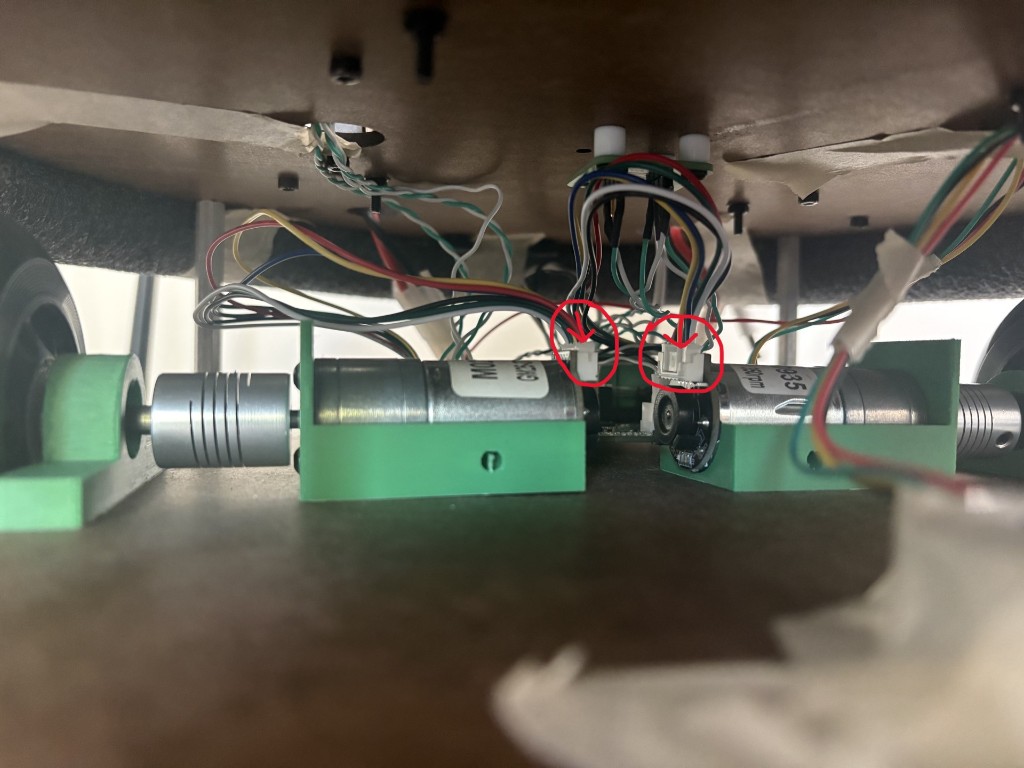
Press the connectors firmly onto the motors
At each motor, press down on the plastic part of the wire connector where it plugs into the matching plastic connector on the motor (see the red circles/arrows in the photo). Press gently but firmly. The easiest way is to put one finger on either side of the wires and push straight down.
Check the motor-to-board wiring
Inspect the six-wire bundles that run from each motor to the circuit board:
- Try to keep these motor wires from crossing other cables — especially the white/green twisted-pair wires.
- Spread the six motor wires apart a bit if they are tightly bunched together (they stay joined at the connector, but separating them along the run helps).
Jetson Orin Nano: boots to UEFI shell instead of Linux — applies to Robot 3 (and the same symptoms on any other Jetson).
What you’re seeing
On startup, instead of booting normally, you get a screen like this:
UEFI Interactive Shell v2.2
EDK II
UEFI v2.70 (EDK II, 0x00010000)
Mapping table
      FS1: Alias(s):F1:
      FS0: Alias(s):F0:
Press ESC in 5 seconds to skip startup.nsh or any other key to continue.
Shell>
This isn’t a specific “error code” — it means the board’s firmware (UEFI) tried to find a bootable operating system and couldn’t, so it dropped into this fallback shell instead. It’s usually fixable without reflashing anything. Work through the steps below in order — start at Fix 1, and only move to the next one if it doesn’t resolve the issue.
Fix 1: Boot manually from the shell (do this first)
Safe and no risk. Robot 3’s Jetson is normally connected only to a touchscreen, so you need a keyboard to type at the UEFI shell.
- Connect a wired USB keyboard to the Jetson (prefer wired over a wireless USB keyboard — wireless receivers are less reliable in the UEFI shell).
- Power on / boot the Jetson and wait until you see the
Shell>prompt.
If you have trouble reaching or staying at the Shell> prompt: when you see “Press ESC in 5 seconds to skip startup.nsh or any other key to continue,” press any key during that 5-second countdown — don’t let it run out. That takes you to the Shell> prompt, where you can type the commands below.
At the Shell> prompt, list the available filesystems:
map -r
You’ll see a few entries (fs0:, fs1:, fs2:, etc.) — some belong to the SD card, some to firmware volumes. Check each one:
fs0:
ls
Repeat with fs1:, fs2:, etc. Look for a folder called EFI\BOOT\ containing a file named BOOTAA64.EFI. Once you find it, boot it directly (replace fs2: with whichever filesystem actually had it):
fs2:\EFI\BOOT\BOOTAA64.EFI
- If this boots you into Linux normally → the SD card itself is fine; it’s just not being prioritized correctly. Skip ahead to Fix 3.
- If none of the filesystems have that folder/file → continue to Fix 2.
Fix 2: Reseat / check the SD card
- Power off the board completely.
- Reseat the SD card — remove it and firmly reinsert it into the slot on the underside of the module.
- Power back on and check
map -ragain at theShell>prompt to see if a new filesystem shows up. - If you have a USB drive handy, try plugging it in before powering on — this has been reported to “jolt” detection and let the SD card show up on some units.
- If possible, try a different SD card. Some cards are flaky or incompatible with the Orin Nano.
If the SD card still isn’t detected at all after this, move to Fix 5 (reflash) — that points to either a bad card or a deeper firmware issue.
Fix 3: Fix the boot order
This is the most common root cause when the board has both an SD card and an NVMe drive installed. The firmware checks both storage devices at boot and tries whichever is first in its list — if that happens to be the NVMe drive and it doesn’t have a valid, currently-bootable OS, the boot attempt fails and you land in the shell instead of falling back to the SD card.
Option A — from the boot menu:
- Reboot the board.
- When prompted, press ESC to enter setup.
- Go to Boot Maintenance Manager → Boot Options → Change Boot Order.
- Move the SD card (may be labeled eMMC/SD) entry to the top, above any NVMe entry.
- Save and exit, then reboot to test.
Option B — from inside Linux (use this if Fix 1 got you booted):
sudo efibootmgr -v
This lists all boot entries, something like:
Boot000A* Jetson NVME: ... File(\EFI\BOOTAA64.EFI)
Boot000B* Jetson eMMC: ... File(\EFI\BOOTAA64.EFI)
Reorder so the SD/eMMC entry boots first (swap in the actual entry numbers shown on your device):
sudo efibootmgr -o 000B,000A
This is written to persistent firmware storage, so it should survive future reboots.
Fix 4: Note what triggered it
This issue often shows up “out of nowhere” after the board has been working fine for a while. The most common trigger is the board losing power abruptly — a pulled cable, a dead battery, a brownout, or cutting power without a clean shutdown. That can reset the firmware’s saved boot order back to its defaults, which causes it to start trying the NVMe drive again.
Where possible:
- Always shut down cleanly (
sudo shutdown now) before removing power. - If this device runs unattended / in the field and loses power unexpectedly on a regular basis, expect this to recur — re-apply Fix 3 (SD card first in the boot order) after an unclean power loss.
Fix 5: Still stuck? Time to reflash
If you’ve worked through Fixes 1–4 and:
- the SD card genuinely never shows up in
map -r, or - the board won’t boot even after fixing the boot order, or
- the shell itself seems unresponsive or broken
…then the SD card or the board’s underlying bootloader firmware likely needs to be reflashed from a host PC via NVIDIA SDK Manager. This is more involved and carries some risk if done incorrectly.
Stop here and reach out to Matt to help with this step.
On the central operator workstation, install the updated DDS Robot GUI (v0.1.2).
- Open the v0.1.2 release page.
- Download the Windows installer executable from the release assets (e.g.
DDS.Robot.GUI.Setup.0.1.2.exe). - Run the installer and complete the setup prompts to reinstall the GUI. If Windows SmartScreen warns about an unsigned app, choose More info → Run anyway if you trust the source.
- Launch the Robot GUI from the Start menu or desktop shortcut when installation finishes.
After updating, start Docker Desktop and use Local Stack Docker Start (and Capture Start if needed) as in Running the Robots. You may need to re-enter the dds_robot_platform path and WSL distro in the Local Stack panel.
On the central operator workstation, reinstall the DDS Robot GUI from the latest Windows installer release.
- Open the dds_robot_platform Releases page.
- Under the latest release assets, download DDS.Robot.GUI.Setup.0.1.0.exe.
- Run the installer and complete the setup prompts. If Windows SmartScreen warns about an unsigned app, choose More info → Run anyway if you trust the source.
- Launch the Robot GUI from the Start menu or desktop shortcut when installation finishes.
After reinstalling, start Docker Desktop and use Local Stack Docker Start (and Capture Start if needed) as in Running the Robots. You may need to re-enter the dds_robot_platform path and WSL distro in the Local Stack panel.
If the lab Wi-Fi network, SSID, or DHCP leases have changed, update connectivity and IP configuration on every robot and on the central machine (Robot GUI saved addresses, CycloneDDS peer lists, and each Jetson’s robot_env.sh / cyclonedds.xml).
Follow the full procedure in Updating Wi-Fi (IP Addresses) — connect to the new network, record IPs, update the Robot GUI and central cyclonedds.xml, then update and test each robot.
The digital twin currently uses the API calls: robotPositions, robotGoals, etc.
However, I have added additional APIs that provide the transformed coordinates to the DT global map. The API calls in the DT must be updated
- Update the digital twin API calls to now use: globalRobotPositions, globalRobotGoals, etc. (update all api calls you have)
- Please see this document for full details: https://github.com/satomm1/dds_robot_platform/blob/main/docs/graphql-application-api.md#global-map-client
Your DT code also provides the ability to set the transformation between robot map and global map. However, since I already perform this in my code, the DT should not utilize this functionality. I recommend disabling it or setting it to be disabled by default. (To get it to work while testing I had to go to advanced mode->tools->calibration->disable the calibration profile)
On each Jetson host (outside Docker), install the robot on-screen display from mattbot_display. The touch-screen UI shows messages from the robot backend, speaks them with local Piper TTS, and provides Start Robot / Stop Robot controls via the existing host services on ports 8081 (Docker) and 8080 (ROS).
Prerequisites: Complete the Install Jetson host service and Replace Docker images (ml_ros and gemini) updates below first. The display expects robot-host-service on port 8081, the ghcr.io/satomm1/ml_ros:latest image, and the ghcr.io/satomm1/gemini:latest image for the voice backend.
1. Install system packages on the Jetson:
sudo apt update
sudo apt install -y python3-tk alsa-utils curl wget git
2. Clone or update the repository at ~/mattbot_display:
cd ~
# First time on this Jetson:
git clone https://github.com/satomm1/mattbot_display.git
# If the repo already exists:
cd ~/mattbot_display && git pull
If git pull fails because of local changes (e.g. modified tracked files), discard them and pull again:
cd ~/mattbot_display
git restore .
git pull
3. Update the robot backend at ~/gemini_api (the display reads messages from this service over HTTP). This repository is private — Git will prompt for credentials when you clone or pull. Ask Matt for the password you will need to access the updates (your GitHub username is fine for the username field):
First time (repo not on the Jetson yet):
cd ~
git clone https://github.com/satomm1/gemini_api.git
When prompted, enter the token above as the password.
Updates (repo already at ~/gemini_api):
cd ~/gemini_api
git pull
If Git asks for credentials again on pull, use the same token as the password.
If git pull fails because of local changes, run git restore . in ~/gemini_api and pull again.
If clone or pull still fails, contact Matt (satomm@stanford.edu).
4. Run the installer from the repo root (installs Piper TTS, systemd service, desktop shortcut, and sudoers for restart):
cd ~/mattbot_display
chmod +x scripts/install.sh
sudo ./scripts/install.sh
The installer runs scripts/setup_piper.sh (downloads Piper and the voice model), enables the mattbot-display systemd unit, and creates a desktop shortcut Start-Mattbot-Display.sh. The service runs Python directly from ~/mattbot_display — after pulling code updates, double-click the desktop shortcut (or run ./scripts/restart_display.sh) to restart; no separate sync step is needed.
5. Verify the display service is running:
sudo systemctl status mattbot-display
curl -s http://127.0.0.1:8081/status
After reboot, the display should start automatically when the graphical session is up. Use the on-screen Exit button to return to the desktop; start it again with the desktop shortcut.
Full configuration (backend URL, socket port, ALSA device, launch path) is documented in the mattbot_display README. Override install path with INSTALL_DIR=/opt/mattbot/display sudo ./scripts/install.sh if you do not use ~/mattbot_display.
On each Jetson (outside Docker), install the Jetson host service so the operator GUI Robot Startup panel can start/stop the ros_noetic container and power off the Jetson over HTTP on port 8081. ROS launch and software updates remain on port 8080 inside the container (startup_script.py).
1. Download the install script on the Jetson:
cd ~
wget "https://raw.githubusercontent.com/satomm1/Robot/main/Jetson/jetson-host-install.sh"
chmod +x jetson-host-install.sh
2. Run the installer on the Jetson:
sudo ./jetson-host-install.sh
The installer writes /opt/robot/host_service.py and enables the robot-host-service systemd unit so the service starts on boot. Re-running the installer replaces the service file and restarts it.
If you see /usr/bin/env: 'bash\r': No such file or directory, the script has Windows (CRLF) line endings. On the Jetson run sed -i 's/\r$//' ~/jetson-host-install.sh and try again.
3. Verify the service is running:
curl -s http://127.0.0.1:8081/status
Expected response (example): {"host_service": true, "docker_running": false, "container": "ros_noetic"}
On each Jetson, remove the old Docker images and pull the updated ml_ros and gemini images from GitHub Container Registry (ghcr.io/satomm1). The pulls can take a long time — use tmux so they keep running if your SSH session disconnects.
Install tmux:
sudo apt update
sudo apt install tmux
Start a tmux session (on the Jetson host, outside Docker):
tmux new -s docker-pull
Inside tmux, stop the ROS container if it is running, remove the old ml_ros image, and pull the new one:
sudo docker stop ros_noetic
sudo docker rmi ros_ml:latest
sudo docker pull ghcr.io/satomm1/ml_ros:latest
Verify the new ml_ros image is present:
sudo docker images ghcr.io/satomm1/ml_ros:latest
Do the same for the gemini backend container — stop it if running, remove the old local image, and pull ghcr.io/satomm1/gemini:latest:
sudo docker stop gemini
sudo docker rmi gemini:latest
sudo docker pull ghcr.io/satomm1/gemini:latest
Verify the new gemini image is present:
sudo docker images ghcr.io/satomm1/gemini:latest
When the pull finishes, detach from tmux without stopping it: press Ctrl+B, then D. To reattach later — or if your SSH terminal disconnects during the pull — run tmux attach -t docker-pull. Exit the session when done: type exit inside tmux.
If docker rmi fails because an image is still in use, stop the container first (sudo docker stop ros_noetic or sudo docker stop gemini) and retry. If the old image tag differs from ros_ml:latest or gemini:latest, remove the tag shown by sudo docker images. No docker login is required — both packages are public on GHCR.
On each Jetson, download these files into ~/workspaces/catkin_ws/src:
cd ~/workspaces/catkin_ws/src
sudo wget -O robot_env.sh "https://raw.githubusercontent.com/satomm1/Robot/main/Jetson/robot_env.sh"
sudo wget -O startup_script.py "https://raw.githubusercontent.com/satomm1/dds_robot_platform/main/robot/startup_script.py"
sudo wget -O cyclonedds.xml "https://raw.githubusercontent.com/satomm1/Robot/main/Jetson/cyclonedds.xml"
Edit robot_env.sh on each robot (inside the Docker container this path is /workspace/catkin_ws/src/robot_env.sh):
sudo nano ~/workspaces/catkin_ws/src/robot_env.sh
Update these lines with the values below. Set ROS_IP and ROBOT_ID uniquely for each robot; the other values are the same for all KAIST units:
export ROS_IP=              # this Jetson's IP address
export ROBOT_ID=              # unique ID for this robot (match MCU robot ID)
export MCU_SPI=3
export CAMERA_TYPE=astra_pro_plus
export ROBOT_HEIGHT=tall
Use the arrow keys to move the cursor. Type each value after the = on the lines above (leave export and the variable names unchanged).
Save and exit nano: press Ctrl+O, then Enter to confirm the filename, then Ctrl+X to close the editor.
Configure cyclonedds.xml on each robot (host path ~/workspaces/catkin_ws/src/cyclonedds.xml; inside Docker, /workspace/catkin_ws/src/cyclonedds.xml). This file disables multicast and uses an explicit peer list for WiFi mesh discovery. robot_env.sh sets CYCLONEDDS_URI to this path — leave that line unchanged.
sudo nano ~/workspaces/catkin_ws/src/cyclonedds.xml
You must update the <Peer Address="…"/> entries so they list the actual IP addresses of every robot and device that should participate in DDS discovery on your network:
- Include this Jetson’s IP address (the same value you set for
ROS_IPinrobot_env.sh). - Add the IP addresses of every other KAIST robot and any operator machines running DDS on the mesh.
- Remove any placeholder entries that do not correspond to a real device.
The default file assumes the wlan0 interface; change <NetworkInterface name="…"/> only if your WiFi interface has a different name (run ip link or ifconfig to check).
Save and exit nano: Ctrl+O, Enter, Ctrl+X.
See Setup Guide → ROS workspace for sourcing robot_env.sh in ~/.bashrc if not already configured.
Each Jetson must load the spidev kernel module at boot so the robot can communicate with the MCU over SPI. Perform this on every robot unit.
Edit /etc/modules-load.d/spidev.conf on the Jetson host (outside Docker):
sudo nano /etc/modules-load.d/spidev.conf
Add this line to the file (create the file if it does not exist):
spidev
Save and exit nano: Ctrl+O, Enter, then Ctrl+X. Reboot the Jetson for the change to take effect:
sudo reboot
Configure WiFi roaming so each Jetson can switch access points when signal is weak. The Intel AC9260 is already installed on your robots — download and run the setup script on every Jetson host (outside Docker).
Download the script:
cd ~
wget "https://raw.githubusercontent.com/satomm1/Robot/main/Jetson/wifi_roaming_setup.sh"
chmod +x wifi_roaming_setup.sh
Run the installer:
sudo ~/wifi_roaming_setup.sh
Follow the prompts for your lab SSID, password, and regulatory domain (KR for Korea). Then reboot:
sudo reboot
After reboot, verify the services are running (replace wlan0 if your interface name differs):
sudo systemctl status wpa_supplicant@wlan0 custom_wifi.service
Assign a fixed DHCP reservation for each Jetson’s WiFi MAC on your router for a stable IP. Revert steps are in the Jetson README.
Patrol
Required first: Patrol only works after you complete the current One Time Updates — install the DDS Robot GUI update, run the robot software updates on each Jetson (then stop/restart Docker on the robots), and git pull dds_robot_platform on the central machine. See One Time Updates.
The Patrol checkbox puts the selected robot into patrol mode. The robot patrols between points you choose and save from the GUI.
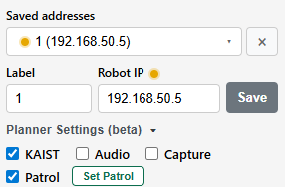
Select the robot and enable patrol
Under Robot Startup on the right-hand side, select the desired robot, then check the Patrol checkbox.
Open the patrol panel
Click Set Patrol. A panel opens on the left-hand side showing the patrol points for that robot.
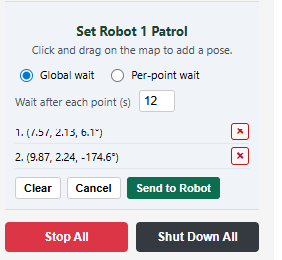
Edit points and dwell time
Remove existing points or add new ones by clicking/dragging on the map. You can also set how long the robot should stay at each patrol point before moving to the next one.
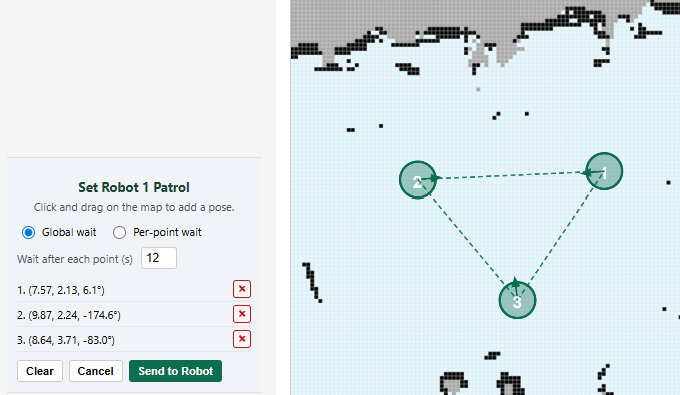
Send to the robot
When finished, click Send to Robot.
Start ROS to begin patrolling
The next time you Start ROS for that robot, it will automatically patrol between the saved points. You still need to initialize the robot position (set initial pose) as usual before navigation will work correctly.
Basic Tests
After completing Running the Robots (central machine startup, robot startup, and localization), use these quick checks to confirm communication and navigation are working before scenario runs or further debugging.
This page polls the capture API for the latest camera frame from each robot. Use it to verify that robot image streams are reaching the central machine.
Download the viewer HTML
On the central machine, download watch_robot_images.html from the dds_robot_platform docs folder (use Raw → Save As, or open the file from your local clone at dds_robot_platform/docs/watch_robot_images.html).
Open it and set robot IDs
Open the HTML file in a browser on the central machine. At the top of the page, set the four robot ID fields to 1, 2, 3, and 4 (match the IDs used on your KAIST fleet).
Start robots and confirm live images
Make sure the central stack is running, including Capture from the Robot GUI Local Stack panel (Capture Start, under Local Stack Docker Start), and start at least one robot as in Running the Robots. Live camera images for active robots should appear in the 2×2 grid on the page.
If a cell shows “no frame” or “unreachable,” check that that robot’s ROS stack is up, capture is running, and the robot ID matches the GUI / robot_env.sh configuration.
Use the Robot GUI to confirm localization and navigation end-to-end (see Robot Operation under Running the Robots):
- Select a robot and set its initial position on the map. The robot icon should move to the clicked pose and the robot should spin to localize.
- Switch to Set Robot Goal and click a nearby destination. The robot should plan a path and drive toward the goal.
- Confirm you see motion on the physical robot and that the pose updates on the map as it moves.
If initial pose, goals, and motion all work, DDS communication, localization, and navigation are functioning as expected for day-to-day GUI control.
Updating Wi-Fi (IP Addresses)
Use this procedure when the robots or central machine move to a new Wi-Fi network (new SSID, passwords, or DHCP leases). Complete the steps below on every robot and on the central machine so the Robot GUI and DDS discovery use the new addresses.
Connect each robot to the new Wi-Fi
On each robot’s display, go to the Ubuntu desktop. In the upper-right corner, click the power/system menu, then open the Wi-Fi settings. Select the new Wi-Fi SSID and enter the password to connect.
Repeat for every robot in the fleet.
Record each robot’s new IP address
Plug a USB keyboard into the Jetson. Open a terminal and run:
ifconfig
Find the wlan0 section and note the address next to inet — that is the robot’s Wi-Fi IP. Write down both the robot number and this IP address.
Repeat for every robot so you have a full list (e.g. Robot 1 → 192.168.x.x, Robot 2 → …).
Update saved addresses in the Robot GUI
On the central machine, open the Robot GUI. In the right-hand Robot Startup panel:
- Under saved addresses, select each existing robot entry one by one and click the X next to it to remove the old address.
- For each robot, enter the robot ID in the label field, type the new IP from step 2, and click Save.
If the robots are powered on and reachable, the new IPs should be recognized and the status dot next to each robot should be solid gray (not red, and not flashing gray).
Update Windows Firewall (Matts Rule)
On the central Windows machine, allow the new robot IPs through Windows Defender Firewall so ROS/DDS traffic is not blocked.
- Open the Windows Defender Firewall app (search for “Windows Defender” in the Windows search box).
- In the left column, click Inbound Rules.
- Find the rule labeled Matts Rule (scroll down if the list is alphabetical).
- Double-click Matts Rule. In the dialog that opens, select the Scope tab at the top.
- Under Remote IP address, add the robot IP addresses from step 2. You can add each IP individually, or use an IP address range to include all robots at once. You may remove old robot IPs, but that is optional.
- Click Apply, then OK.
- In the left column, click Outbound Rules. The Matts Rule should be near the top of this list.
- Double-click Matts Rule, open the Scope tab, and again add the robot IPs under Remote IP address (optionally remove old IPs). Click Apply, then OK.
Update cyclonedds.xml on the central machine (WSL1)
On the central machine, open an Ubuntu WSL 1 terminal. Pull the latest dds_robot_platform so you have update_wifi_ips.sh, then run the script. It prompts for the central machine IP and each robot IP, then updates cyclonedds.xml automatically:
cd ~/dds_robot_platform
git pull
cd dds
./update_wifi_ips.sh
Enter the central machine IP and every robot IP from step 2 when prompted.
If you are already running ./start_scripts.sh, restart it after the script finishes (stop with ./stop_scripts.sh or Ctrl+C, then run ./start_scripts.sh again from ~/dds_robot_platform/dds) so discovery picks up the new peers.
Update Wi-Fi IPs on each robot
Repeat this step for every robot.
Start Docker on the robot if it is not already running (Robot GUI Start Docker, or Start Docker on the robot display app).
SSH into the Jetson from an Ubuntu WSL 1 terminal on the central machine (username/password = jetson):
ssh jetson@<robot_ip_address>
Enter the running ROS container:
docker exec -it ros_noetic bash
Download and run the Wi-Fi IP update script. It prompts for the central machine IP and each robot IP, then updates robot_env.sh and cyclonedds.xml automatically:
cd /workspace/catkin_ws/src
wget -O update_wifi_ips.sh "https://raw.githubusercontent.com/satomm1/Robot/main/Jetson/update_wifi_ips.sh"
chmod +x update_wifi_ips.sh
./update_wifi_ips.sh
Enter the same IP addresses you used in step 5 when prompted.
Test locally with minimal.launch
Still inside the container, with the electronics/motor switch on, run:
roslaunch mattbot_bringup minimal.launch
If everything is working, you should see a launch summary (Parameters, Nodes), messages about processes that were started, and an [INFO] message that includes the robot ID.
Press Ctrl+C to stop the test launch when finished. Repeat steps 6–7 for each remaining robot.
Test on the network
After every robot has been updated and tested locally, verify that the central machine can talk to the robots over the new Wi-Fi network.
- On the central machine, start Local Stack Docker from the Robot GUI if it is not already running.
- In an Ubuntu WSL 1 terminal, start the DDS scripts:
cd ~/dds_robot_platform/dds
conda activate dds
./start_scripts.sh
- From the Robot GUI, start each robot (Docker + ROS with the KAIST checkbox, as in Running the Robots).
If the network configuration is correct, the robots should appear on the map in the Robot GUI. In the terminal where ./start_scripts.sh is running, you should also see messages indicating that the central machine has connected to the robots that were started.
Mapping
Use this workflow to create a new SLAM map on a KAIST robot. Power on the robot first (see Running the Robots), then SSH into the Jetson and run the steps below.
SSH into the Jetson
Connect to the robot you will map (username/password = jetson):
ssh jetson@<jetson_ip_address>
Start the ros_noetic Docker container
On the Jetson, start the ROS container:
sudo docker run --runtime nvidia --network=host -v ~/workspaces/catkin_ws:/workspace/catkin_ws -v ~/gemini_api:/gemini_code -v /dev/bus/usb:/dev/bus/usb -v /dev/video0:/dev/video0 -v /dev/video1:/dev/video1 -it --device=/dev/ttyUSB0 --device=/dev/spidev0.0 --rm --privileged --name ros_noetic ghcr.io/satomm1/ml_ros:latest bash -lc 'python3 /workspace/catkin_ws/src/startup_script.py & exec bash'
Wait for the container shell to appear.
Start the mapping launch file
In the first terminal (inside the Docker container), launch SLAM mapping:
roslaunch mattbot_bringup sense_and_map.launch
Drive the robot with keyboard teleop
Open a second terminal, SSH into the same Jetson again, and enter the running container:
docker exec -it ros_noetic bash
Start the keyboard teleop node:
roslaunch mattbot_teleop keyboard.launch
Focus the teleop terminal and use the keyboard to drive the robot through the entire area you want mapped.
Real-time map visualization: To watch the map build as you drive, use RViz on a separate machine on the same network as the Jetson. See Setup Guide → RVIZ visualization for configuration (ROS_MASTER_URI pointing at the Jetson, then rosrun rviz rviz).
Finalize and save the map
When you have driven through the entire area, press Ctrl+C in the teleop terminal to exit keyboard control.
In the same terminal (still inside the Docker container), finalize the map — replace <map-name> with a short name for this space (e.g. lab_floor1):
rosrun mattbot_mcl finalize_map.py --name <map-name>
This saves the map and generates the files needed by the robots and the central operator computer. For large maps, this step can take a few minutes.
Stop mapping
Press Ctrl+C in the first terminal (where sense_and_map.launch is running) to stop mapping once map saving has finished. Then stop the Docker container by typing exit.
Load the map on the central computer GUI
On your operator workstation, open the DDS Robot GUI and start the local Docker stack (see Operation → Starting User GUI / DDS if needed).
- In the right-hand column, select the robot you used for mapping.
- Open the drop-down for loading/syncing robot maps.
- Enter a name for the map (use the same name as in step 5, or another label you prefer for the GUI).
- Click Sync Map From Robot.
The on-screen map should update with your new map once the sync completes.
Send the map to other robots
Repeat these steps for each robot that should use the new map (on the central computer GUI):
- In the right-hand column, select the robot you want to send the map to.
- Open the Maps drop-down.
- Click the Send Map option.
- Select the map to send.
- Click the button to send the map.
Repeat for every other robot in the fleet that needs the updated map.
One Time Installs
Complete these steps once on each operator workstation (not on the Jetson). After setup, use Running the Robots for day-to-day operation.
Prerequisites: Docker Desktop (daemon running), git, and Miniconda or Anaconda.
Pre-built installers are produced by GitHub Actions (recommended; no Node.js required).
- Go to dds_robot_platform Actions
- Open the most recent successful workflow run
- Under Artifacts, download one ZIP for your system (you must be logged in to GitHub):
- Windows:
gui-installer-windows-latest— unzip, run DDS Robot GUI Setup … .exe, launch from the Start menu. Unsigned builds may show SmartScreen — More info → Run anyway if you trust the source. - macOS:
gui-installer-macos-latest— open.dmg, drag DDS Robot GUI to Applications. First launch may need right-click → Open. - Linux:
gui-installer-ubuntu-latest— unzip.AppImage,chmod +x, run. Install FUSE / libfuse2 if the AppImage will not start.
- Windows:
http://localhost:8000/graphql.
Clone the repository on your workstation:
git clone https://github.com/satomm1/dds_robot_platform.git
cd dds_robot_platform
Windows: Clone into your WSL filesystem (e.g. under ~/ in Ubuntu) so docker compose and DDS scripts run where the README expects. Run the GUI from Windows (desktop app) or from source.
Copy and edit the DDS environment file:
cp dds/dds_env.sh.example dds/dds_env.sh
nano dds/dds_env.sh
Set AGENT_ID, INFLUXDB_TOKEN, and any other operator variables. The example file also sets CYCLONEDDS_URI to dds/cyclonedds.xml. Save and exit nano: Ctrl+O, Enter, Ctrl+X.
Edit dds/cyclonedds.xml for your network:
nano dds/cyclonedds.xml
- Network interface — set
<NetworkInterface name="…"/>to the interface that reaches the robot fleet (runip link; common names includewlan0,wlp2s0,eth0). - Peer addresses — replace placeholder
<Peer Address="…"/>entries with the IP address of each KAIST robot and any other DDS participant on the network.
Save and exit nano: Ctrl+O, Enter, Ctrl+X.
Pull images and start the Docker services (GraphQL, InfluxDB, Ignite) from the repo root:
docker compose pull
docker compose up -d
Alternatively, use the GUI Local Stack panel → Docker → Start (requires compose.yaml and dds/dds_env.sh).
DDS Python scripts run on the host (WSL on Windows), not inside Docker. Create the dds conda environment from the dds_robot_platform repo root:
cd dds_robot_platform
conda env create -f environment.yml
conda activate dds
Note: This is the step I am least confident is fully covered by environment.yml. If scripts fail with missing-module errors, install the reported package into the dds env (e.g. pip install <package> with conda activate dds) and let me know so the requirements file can be updated.
Environment creation can take several minutes. If the environment already exists and you need to refresh it:
conda env update -f environment.yml --prune
Verify CycloneDDS is available:
conda activate dds
python -c "import cyclonedds; print('OK')"
Start DDS scripts from the dds directory (start_scripts.sh activates the dds conda env automatically when needed):
cd dds
./start_scripts.sh
Verify scripts are running:
pgrep -af python
You should see publisher/subscriber scripts such as entry_exit.py, heartbeat_publisher.py, and goal_publisher.py. Stop them with ./stop_scripts.sh when finished.
Full reference: dds_robot_platform README and Setup Guide → User GUI / communication.